
Accelerate your continuous improvement results
Download my free guide and start seeing better results today
Download my free guide and start seeing better results today
The Concern Cause Countermeasure (CCC or 3C for short) tool is a brilliant way to engage your teams in declaring what isn't working in your organisation.
You can use this as a two part approach; say what is wrong (get it all out of your teams' heads) and then find solutions later. This two stage approach takes the pressure of you and your team to know the answers, leading to better engagement.
It works great and it is a core tool when I am working with clients.
Note - If you feel that you have more than one cause, or countermeasure, please duplicate the concern by adding a new record.

1. The first step is to define areas of your organisation that you want to focus on and declare your concerns. Enter the name in this input box. An area could be anything; a team, a process, a physical location etc...
2. When you are happy with the title of your focus area, click on the Add button to save.
3. If you need to delete an entry, click on the bin icon and select an option from the pop up.
4. To add your concerns to a focus area, click on the pencil icon (see steps 5 to 14).

5. Enter your first concern in this input box. If you are working on a brainstorm, you can press the Add button at this stage. It is key that you write what you are experiencing (a flat tyre, not a puncture - for example).
6. If you know what the root cause of the concern is, write it in this input box.
7. If you need to return to the previous list, click on this back arrow.
8. And, if you know what action you want to take at the point of capturing the concern, you can add it into this input box.
9. When you are ready to add the Concern Cause Countermeasure entry, click on the Add button. There are no limits to how many entries you add. Each one will be added to a table below.
10. If you want to edit the concern, type directly into the row that needs editing. This will save automatically.
11. Same for the cause, enter the information into this input box. The information saves automatically. Ideally you should spend some time with your team to dig under the skin of the problem and find why the problem is really happening (avoid recording the first symptom you discuss!).
12. Enter the countermeasure information into this input box. Again, this will save automatically.
13. To launch the countermeasure as a task, click on the rocket icon.
14. If you need to delete the concern cause countermeasure entry, click on the bin icon (see step 19).
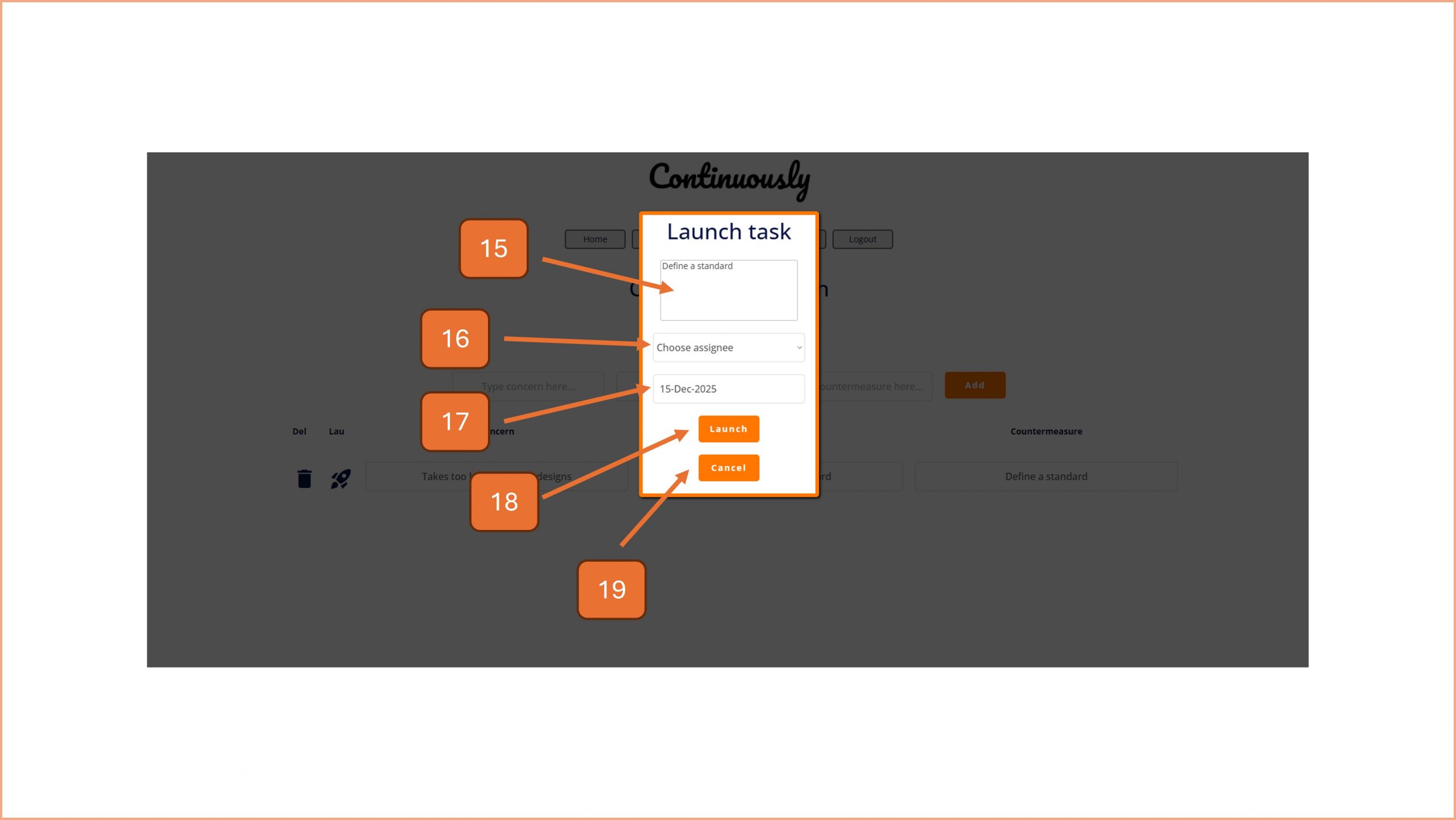
15. Your countermeasure will appear in this input field. Amend as required (ensure that it will make sense when read outside of the context of your CCC focus area).
16. Select who will be responsible for this task from this drop down field.
17. Select a completion date from this date picker.
18. Press Launch when you are ready to release the task.
19. Press Cancel if you no longer want to launch the task.

19. To delete a CCC entry, confirm by clicking Yes.
20. To go back to the previous screen, click on the Cancel button.

© Smartspeed Consulting Limited. All Rights Reserved.