
Accelerate your continuous improvement results
Download my free guide and start seeing better results today
Download my free guide and start seeing better results today
The Home page in Continuously shows your personal tasks held within the system, assigned from the various modules.
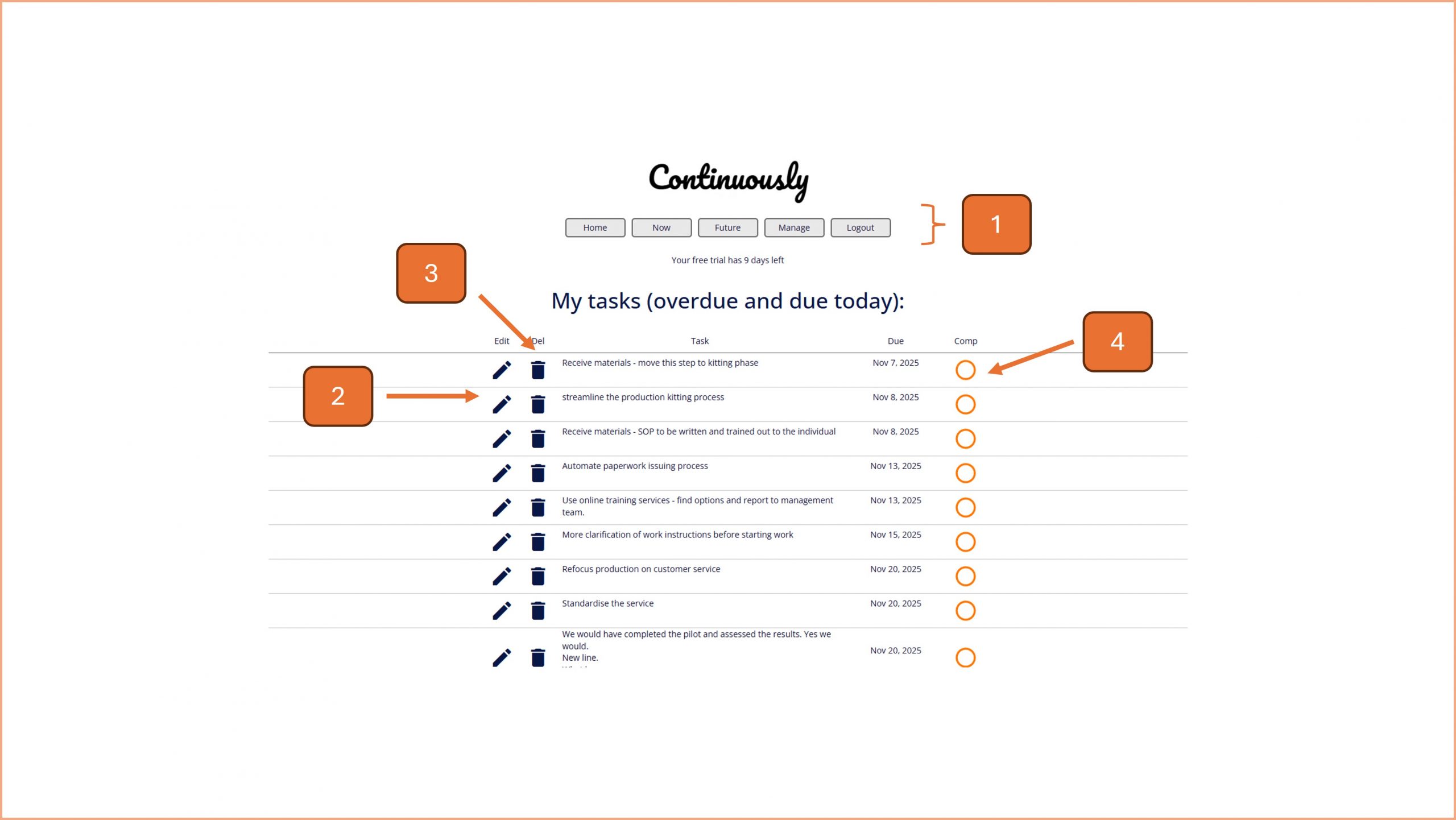
1. Navigate around the app using the menu.
2. To edit a task assigned to you, click on the pencil icon. See point 5.
3. Use the bin icon to delete a task, see point 10.
4. To mark a task as complete, click the circle icon.
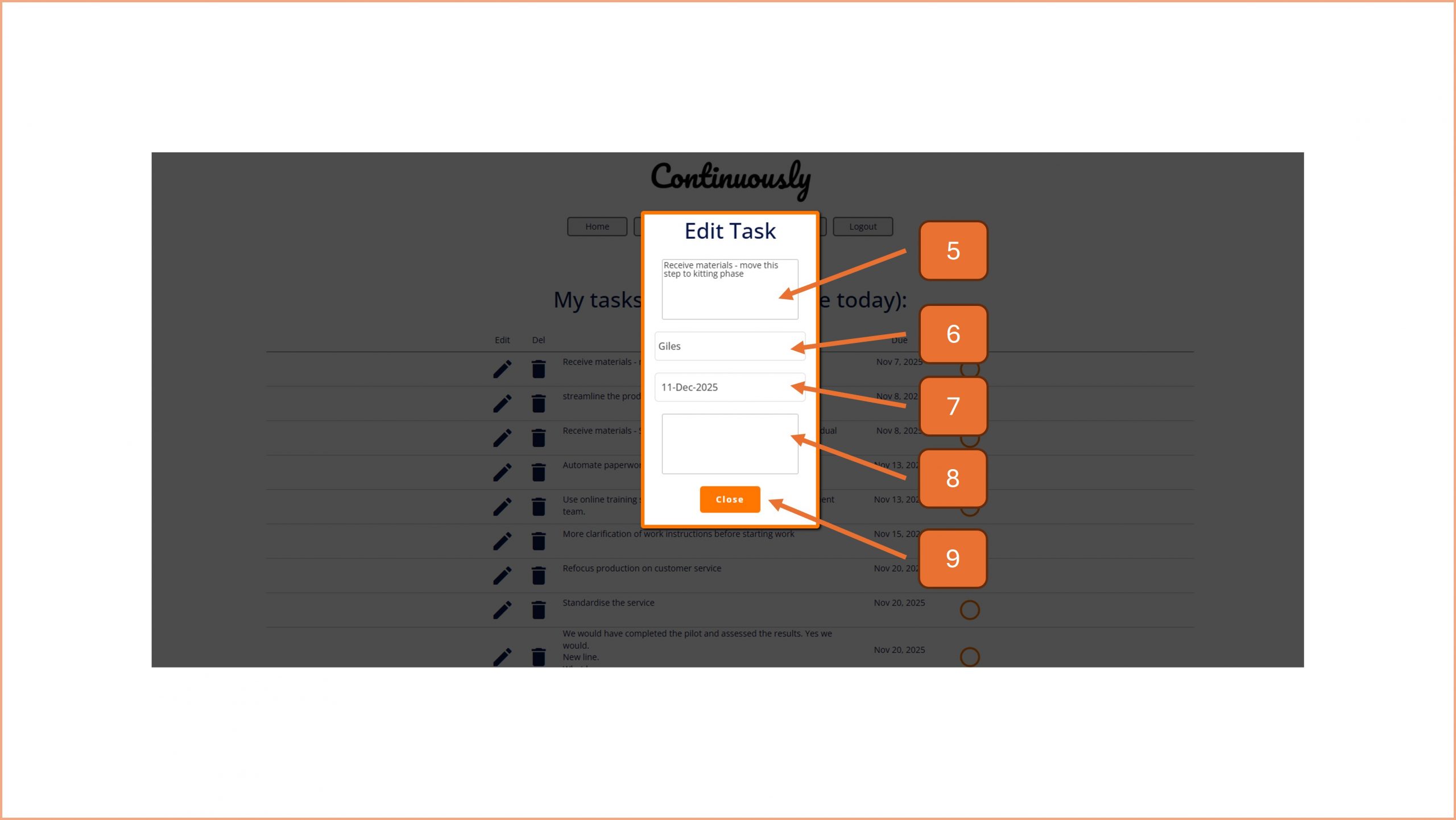
5. Use this field to update the description of the task.
6. You can re-assign the task by changing the user from this drop down option.
7. To reschedule the task, use the date picker. Note - you cannot choose dates from the past.
8. Add notes in this field, as required.
9. Click on the close button when you have finished editing. Changes to any of the above fields are saved automatically.
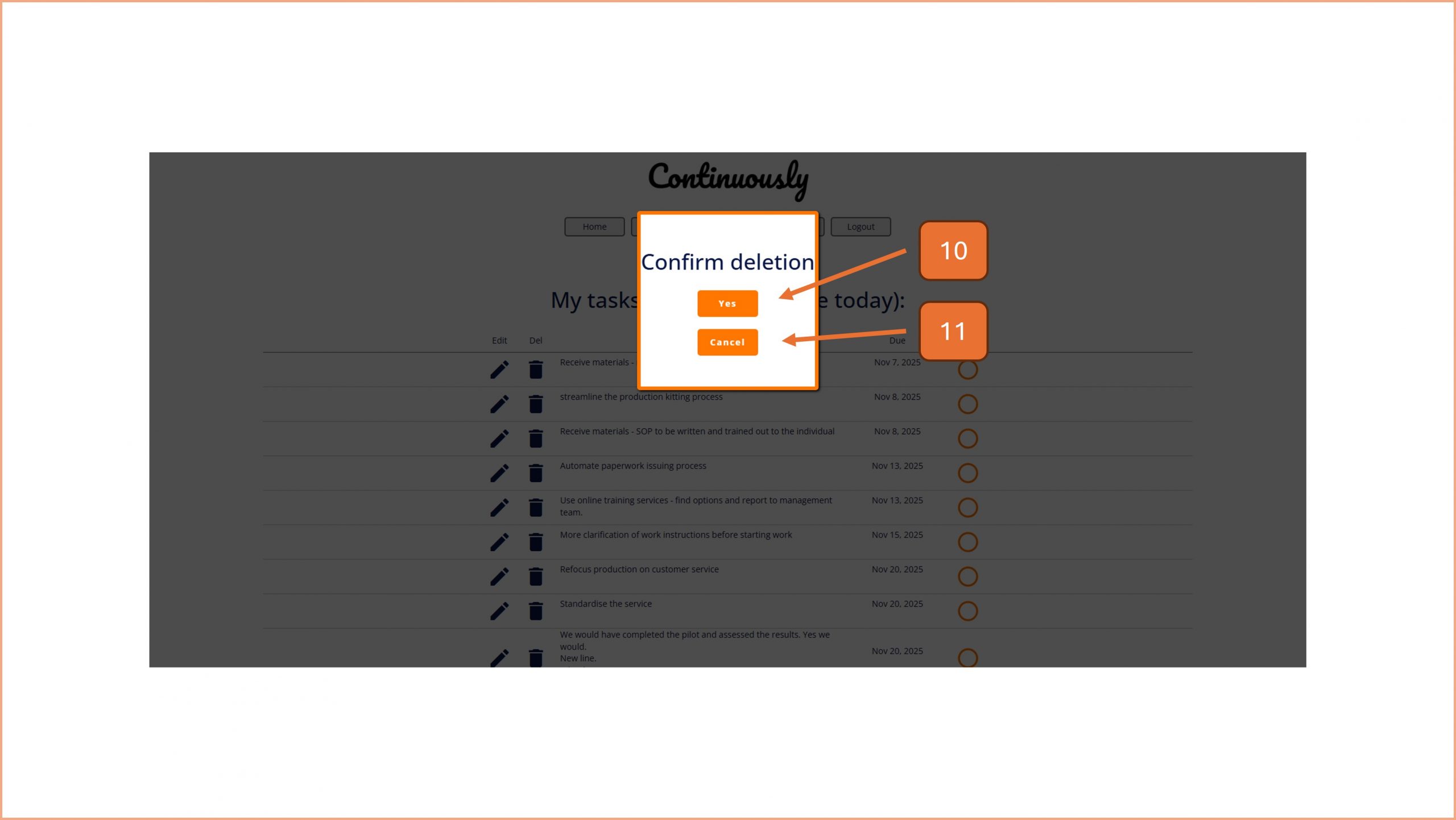
10. To confirm the deletion of a task, click the yes button.
11. To cancel the deletion, click the cancel button.

© Smartspeed Consulting Limited. All Rights Reserved.