
Accelerate your continuous improvement results
Download my free guide and start seeing better results today
Download my free guide and start seeing better results today
Using the Process Flow Analysis tool can bring superb results; allowing you to streamline how your business operates.
In this version of a Process Flow Analysis, I have blended the basic SMED (Single Minute Exchange of Dies) approach to help you get more out of this method. This tool is more involved than some of the other tools within Continuously, but well worth the investment of time.
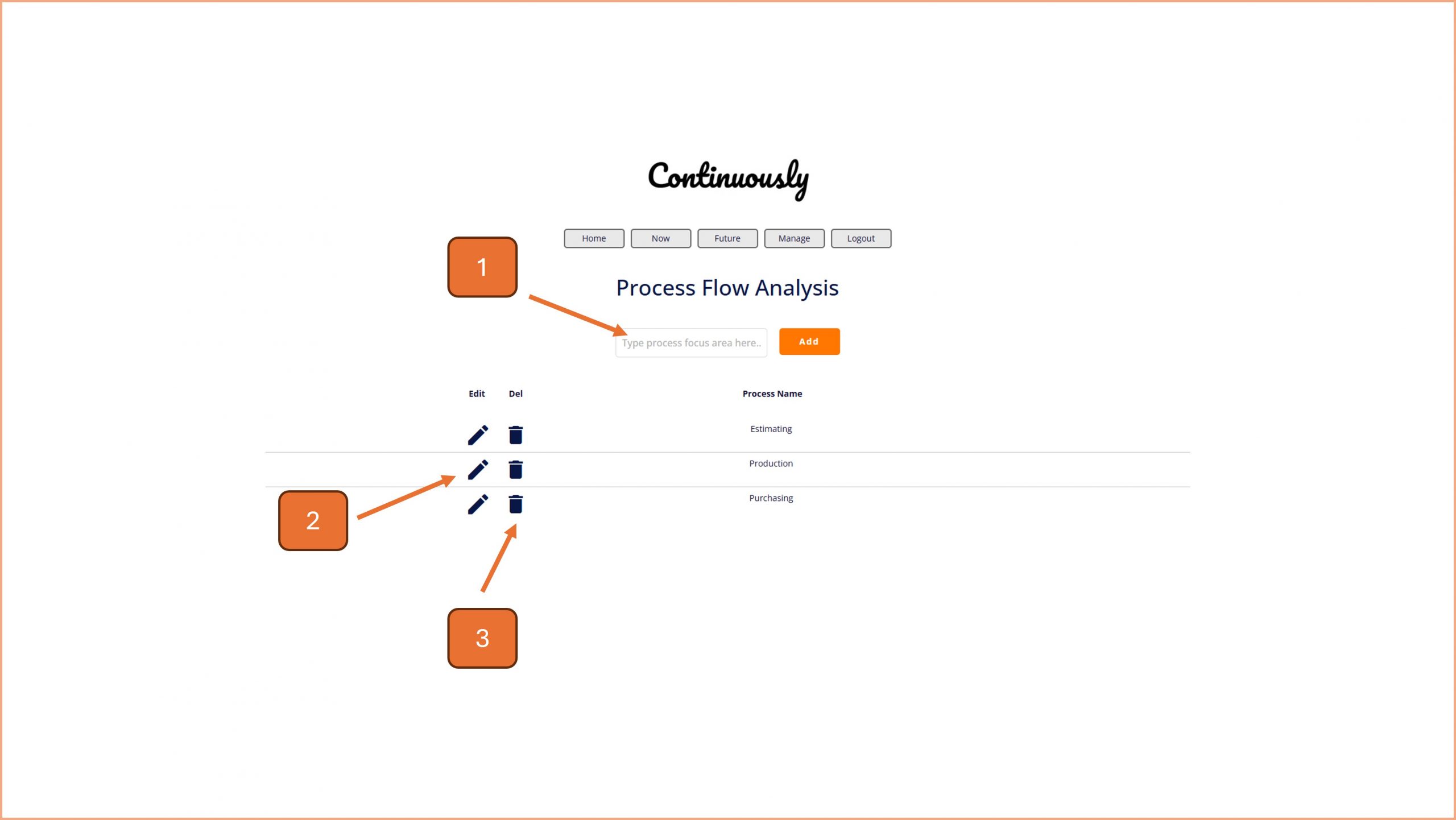
1. Start by defining the process that you are going to focus on, press the Add button to save the focus name.
2. To edit the focus area, and to record the process steps for analysis, click on the pencil icon.
3. If you want to delete the focus area, click on the bin icon and follow the on screen prompts.

4. Record the activity name here for the first step in your process.
5. Select an operation type from the drop down (Operation, Transport, Inspection, Delay, Storage).
6. Make an assessment of whether this step in the process has to be done as part of the main process (Core), can be completed as a preparatory step (Before) or when the main process has completed (After). If the step is redundant, mark it is Remove.
7. Capture the duration the step takes. Use whatever unit of time you want, but be consistent with your recording (all minutes, or all hours, for example).
8. Same for distance travelled during the step. Choose units that make sense to you (metres as default?) and be consistent.
9. Click on the Add button when you want to record this step in the process and then repeat steps 4 to 9 for the remaining steps in your process.
Note - Capture every step in the process, even the 'half steps' that it is easy to skip over when describing the process. Capture everything, otherwise any improvements will be a false victory. Think 'warts and all' and you will be on the right lines.
10. If you need to delete a step in your process, click on the Bin icon for the corresponding row.
11. To launch a task, based on your process step, click on the Rocket icon. Edit the activity step into a meaningful action, and date and assign it, in the pop up window.
12. If you need to amend any of the steps, or change the sequence, edit the row's information.
13. Click on the save / disk icon on the right hand side to save the data.
When you have captured your process steps, aim to achieve the following:
If you are unsure of how to improve specific elements of your process, consider using the Concern Cause Countermeasure tool and get your team involved by dissecting that particular element.

© Smartspeed Consulting Limited. All Rights Reserved.